Manage Your dApp and Rewards
I. Overview
Once your dApp is whitelisted for dApp Staking, you need to complete the registration by submitting your project details. After that, your developer dashboard lets you monitor reward periods, claim earnings, and keep your project page up to date.
This guide covers:
- Completing your project registration after whitelisting
- Filling in project information and submitting the listing
- Accessing and using your developer dashboard
- Claiming dApp Staking rewards
- Editing your project page and adding promotion cards
Prerequisites:
- Your dApp has been approved and whitelisted through governance (see How to Apply)
- An Astar Native (Substrate) wallet connected to the Astar Portal
- A small amount of ASTR for transaction fees
II. Step-by-step Guide
2.1. Step 1: Complete your registration
After your contract is whitelisted, a Congrats!! banner appears on the Your Assets page:
"Your contract is whitelisted on dApp Staking. Please submit details and you will be listed."
Click Register now to open the project information form.
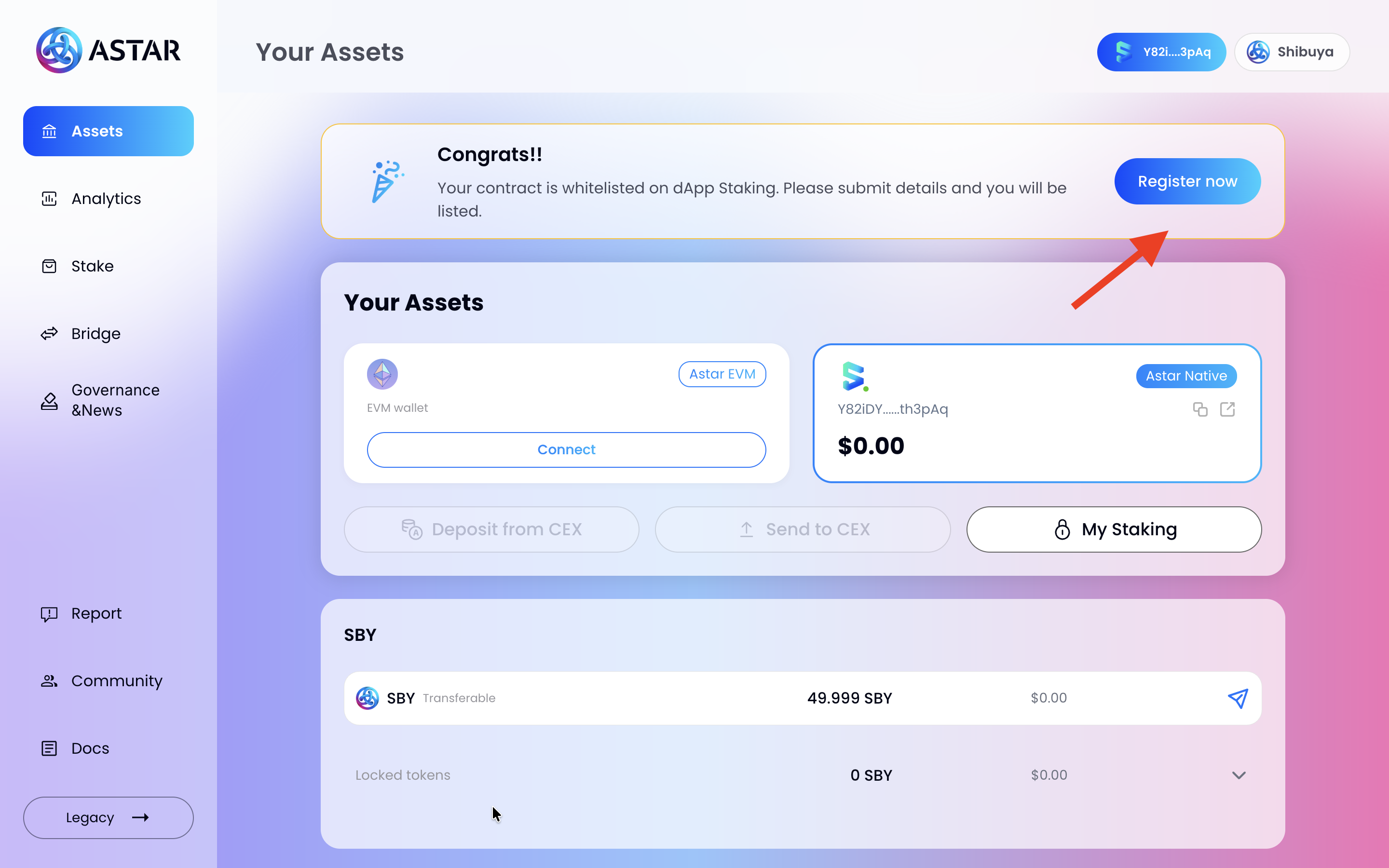
Make sure you are connected with the owner wallet (the Substrate address that was used during the governance approval). The banner only appears for the registered owner address.
2.2. Step 2: Fill in your project information
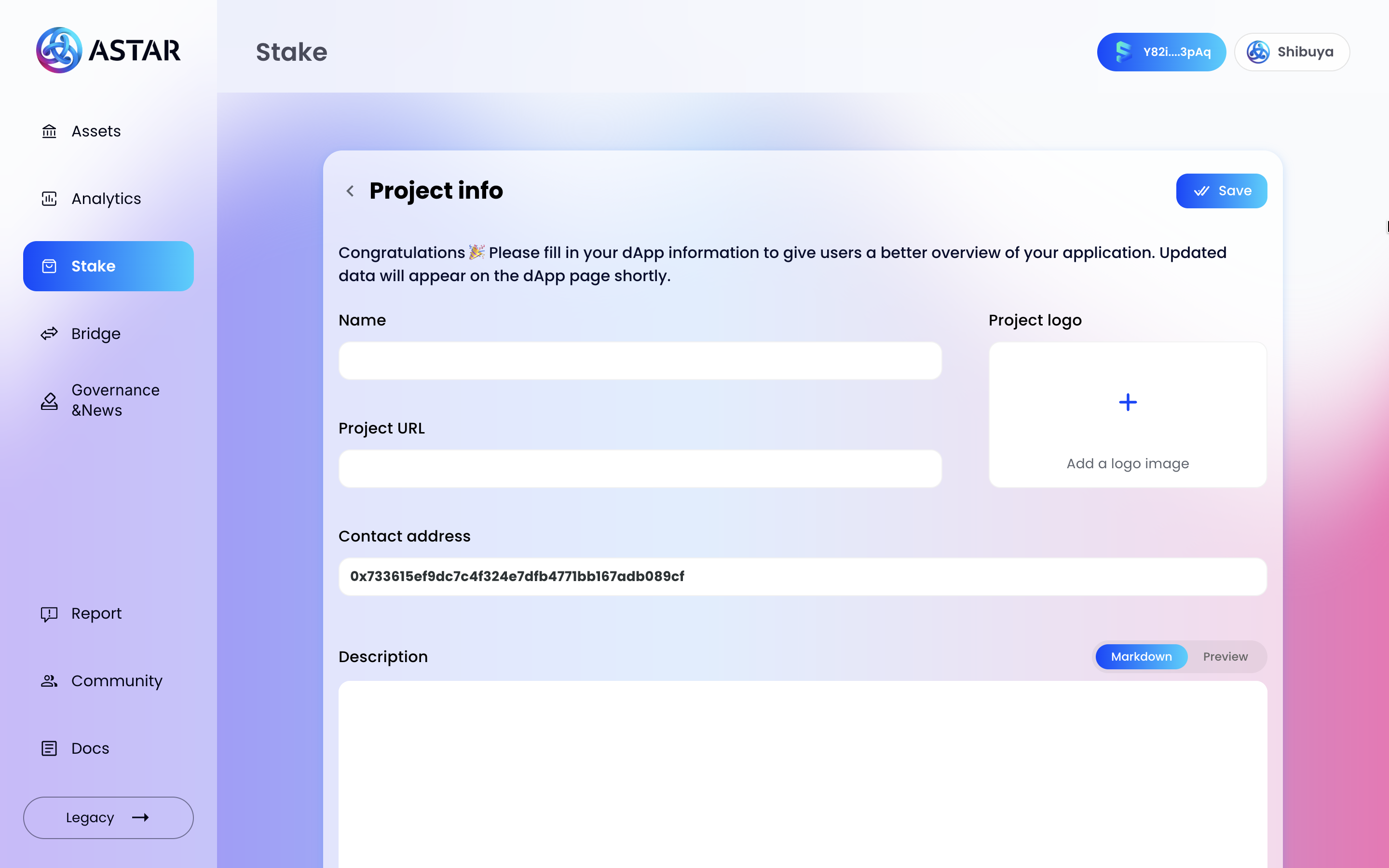
The Project info form lets you define how your project appears to stakers across the Portal.
Fill in the following fields:
- Name — your project's display name
- Project URL — a link to your website or product
- Contract address — pre-filled with your registered smart contract address; do not change this unless instructed
- Description — a full description of your project (supports Markdown; use the Preview tab to review)
- Project logo — upload a logo image
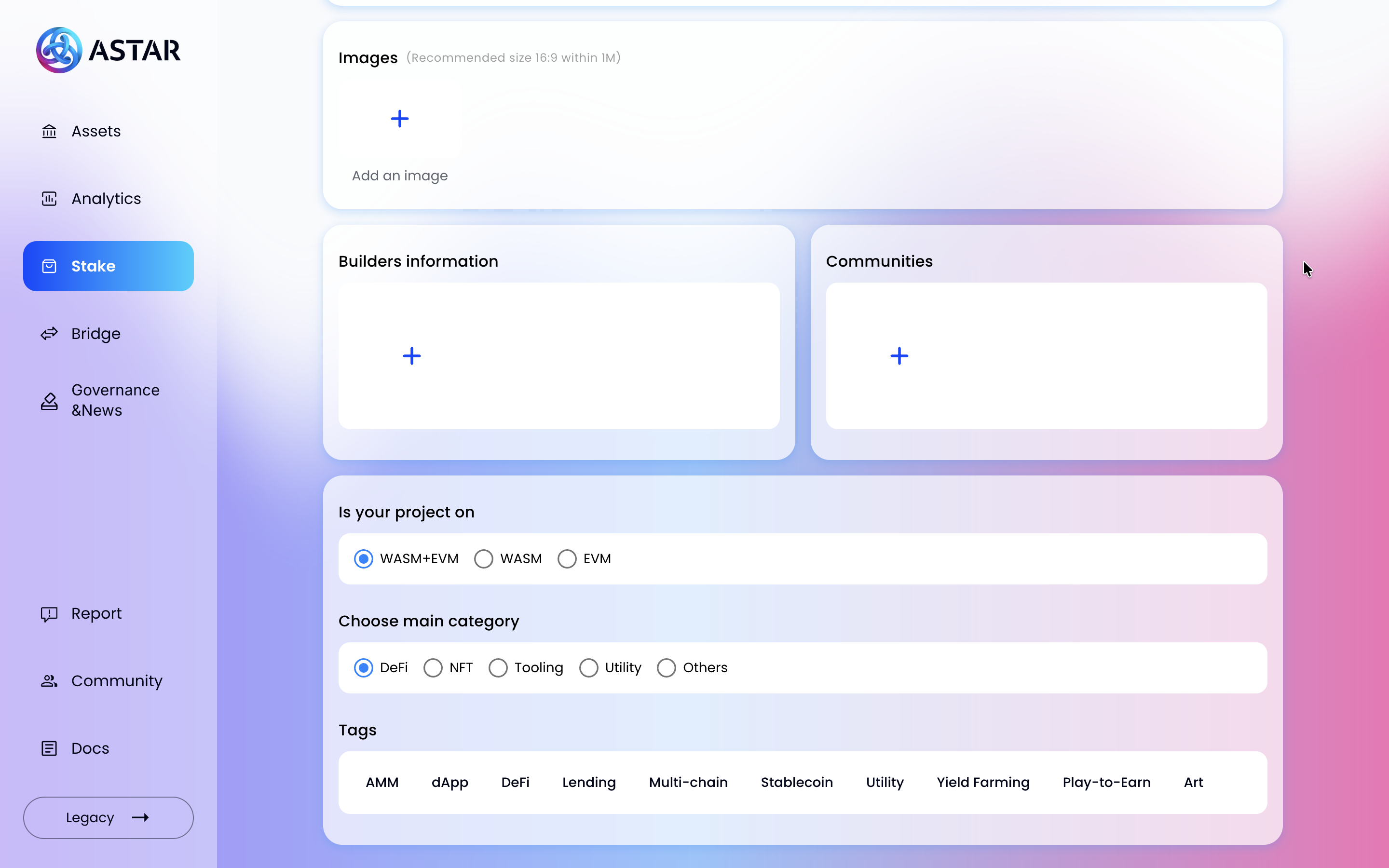
Scroll down to complete the remaining fields:
- Images — upload a banner image (recommended 16:9 ratio, under 1 MB)
- Builders information — add your team members
- Communities — add links to your community channels (Discord, Telegram, X, etc.)
- Is your project on — select WASM+EVM, WASM, or EVM
- Choose main category — select one: DeFi, NFT, Tooling, Utility, or Others
- Tags — select all relevant tags that describe your project
When all fields are complete, click Save in the top right corner.
2.3. Step 3: Submit your listing
A "One more thing!" modal will appear asking you to write a short description of up to 65 characters. This short text is what stakers see on your dApp card in the rankings table.
A live preview shows exactly how your card will appear before you confirm.
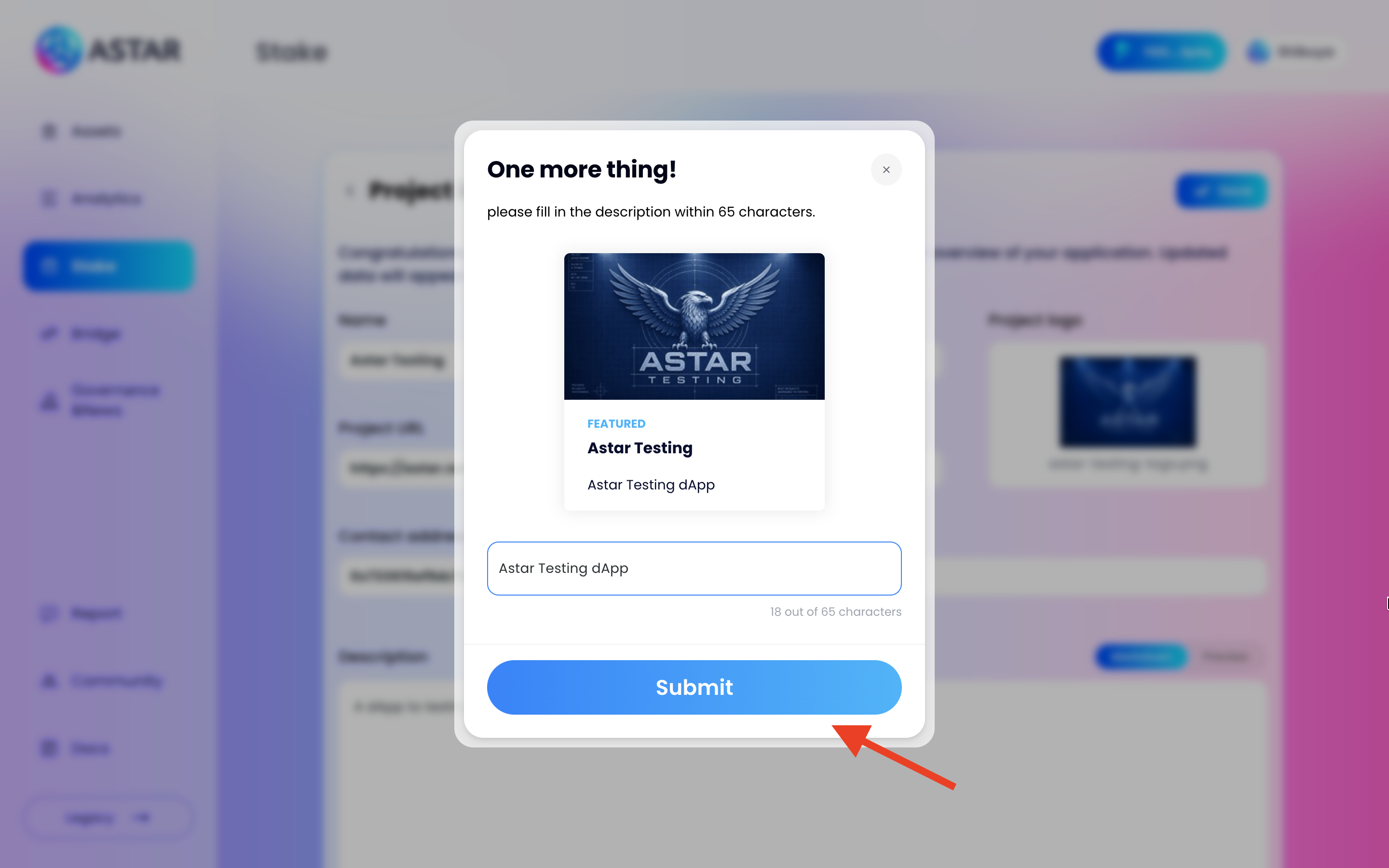
Click Submit and sign the transaction with your wallet. Your project listing will be submitted onchain.
2.4. Step 4: Verify your project is listed
Navigate to Stake in the left sidebar. Your project should now appear in the dApp Rankings table. Confirm the name, category, and staker count are correct.
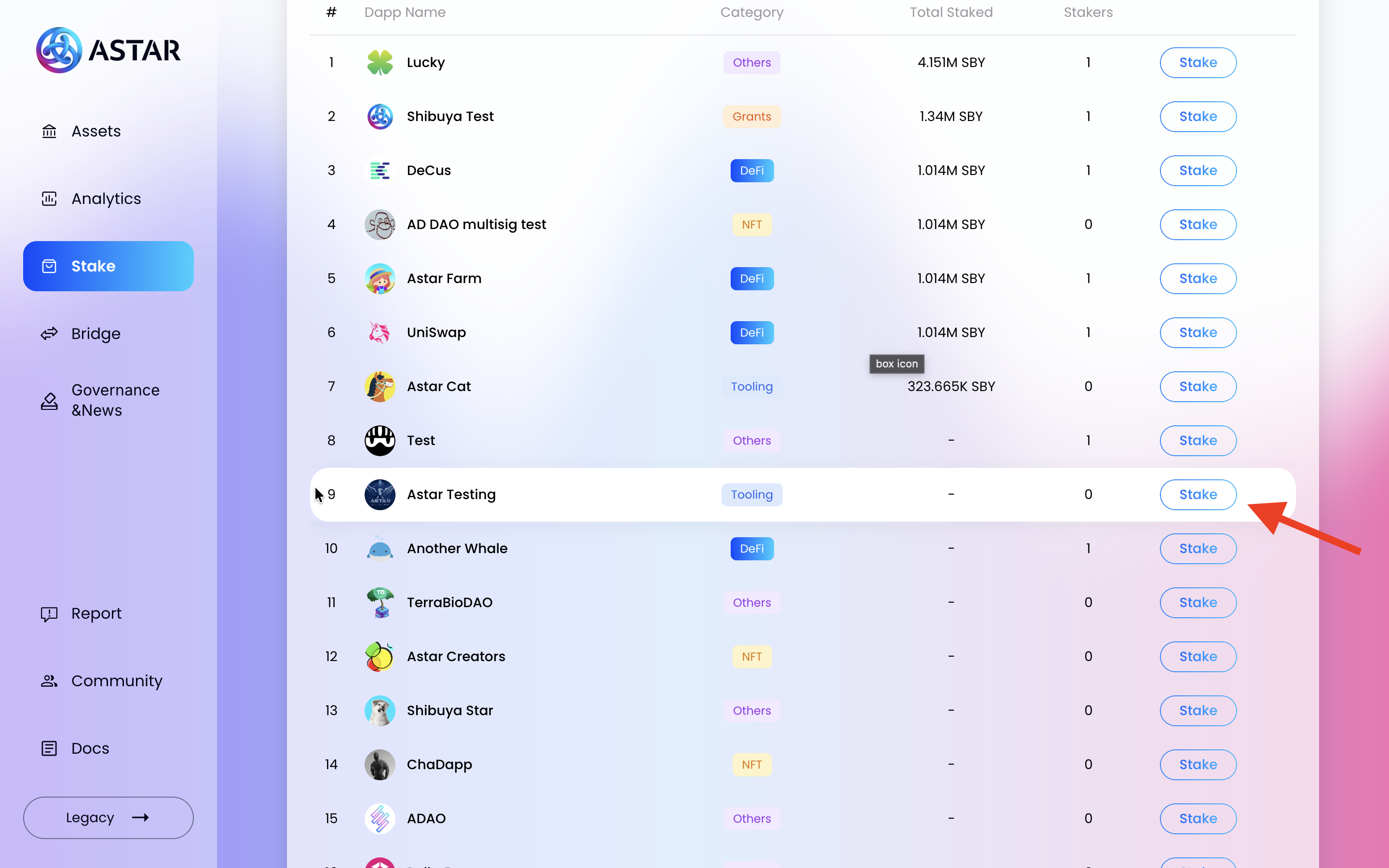
Click your project name in the rankings to open the public page that stakers see. Use this to verify all details look correct before promoting your listing.
2.5. Step 5: Access your developer dashboard
Go to Assets in the left sidebar. You will now see a My Project button next to My Staking in the top section of the page. Click it.
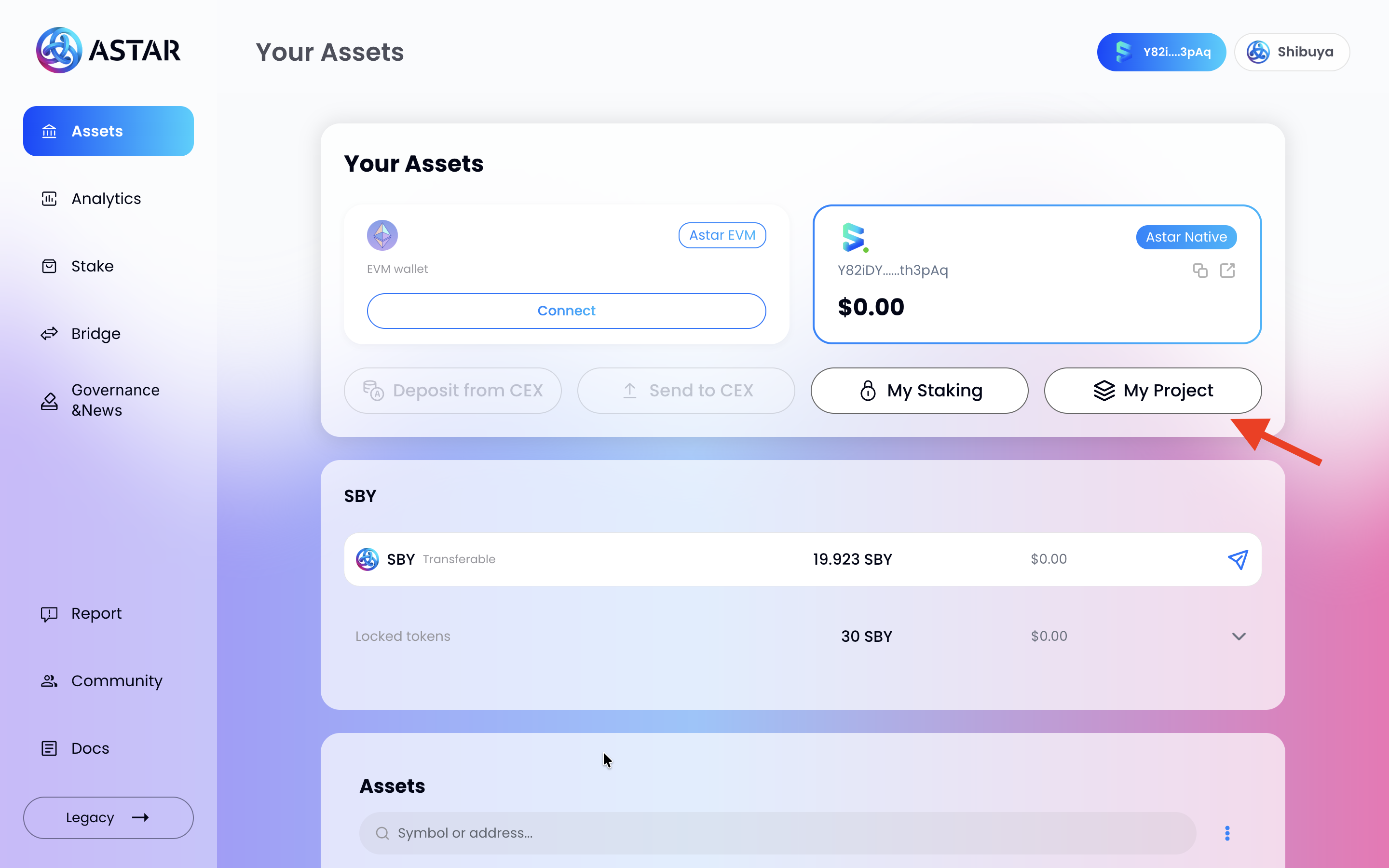
2.6. Step 6: Review your reward periods
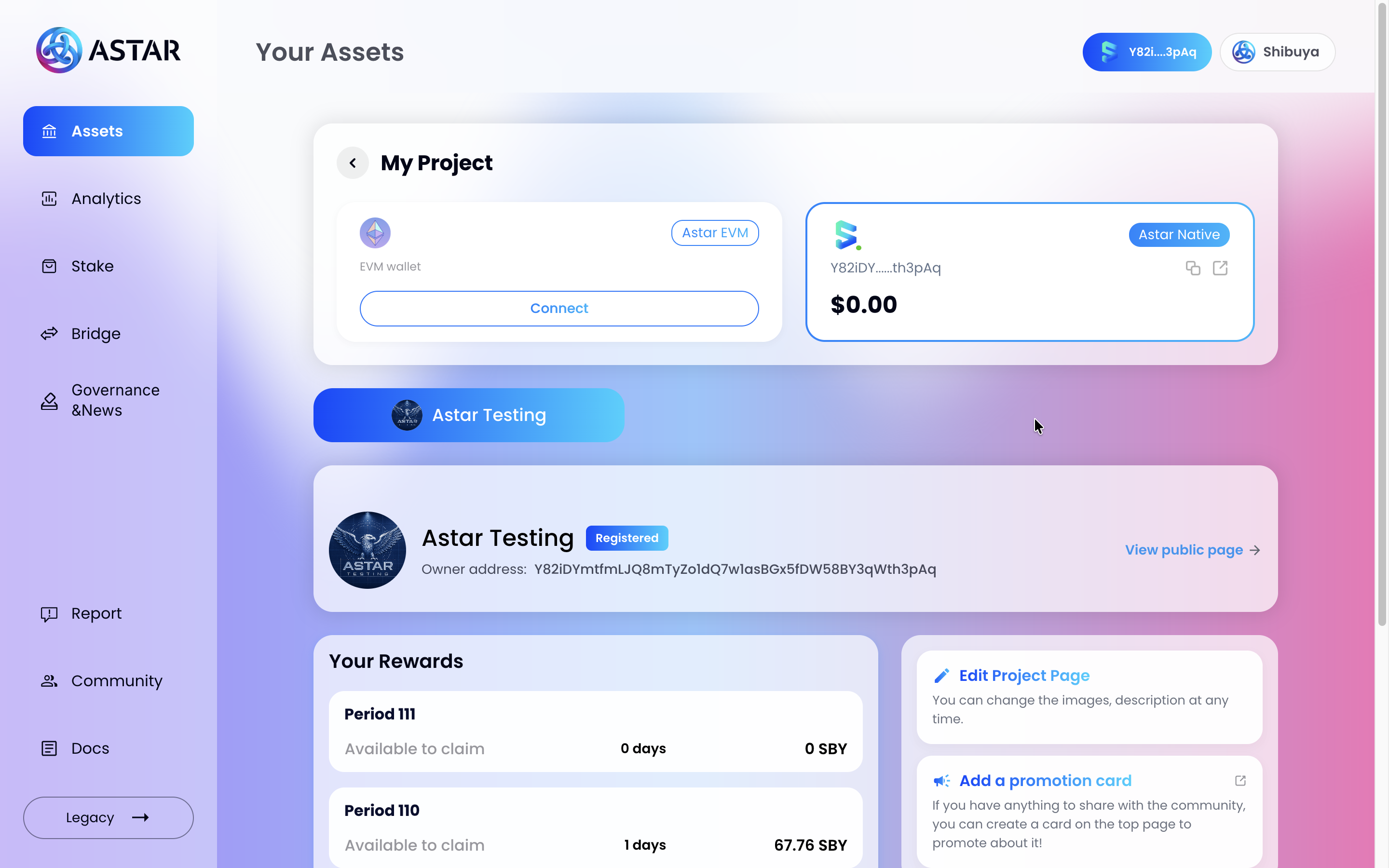
The My Project panel shows:
- Your project name and Registered status badge
- Your owner address and a View public page link
- Your Rewards table, listing each claimable period with the number of days and the ASTR amount available
2.7. Step 7: Claim your rewards
Scroll down in the rewards table to see all pending periods and the Total claimable amount.
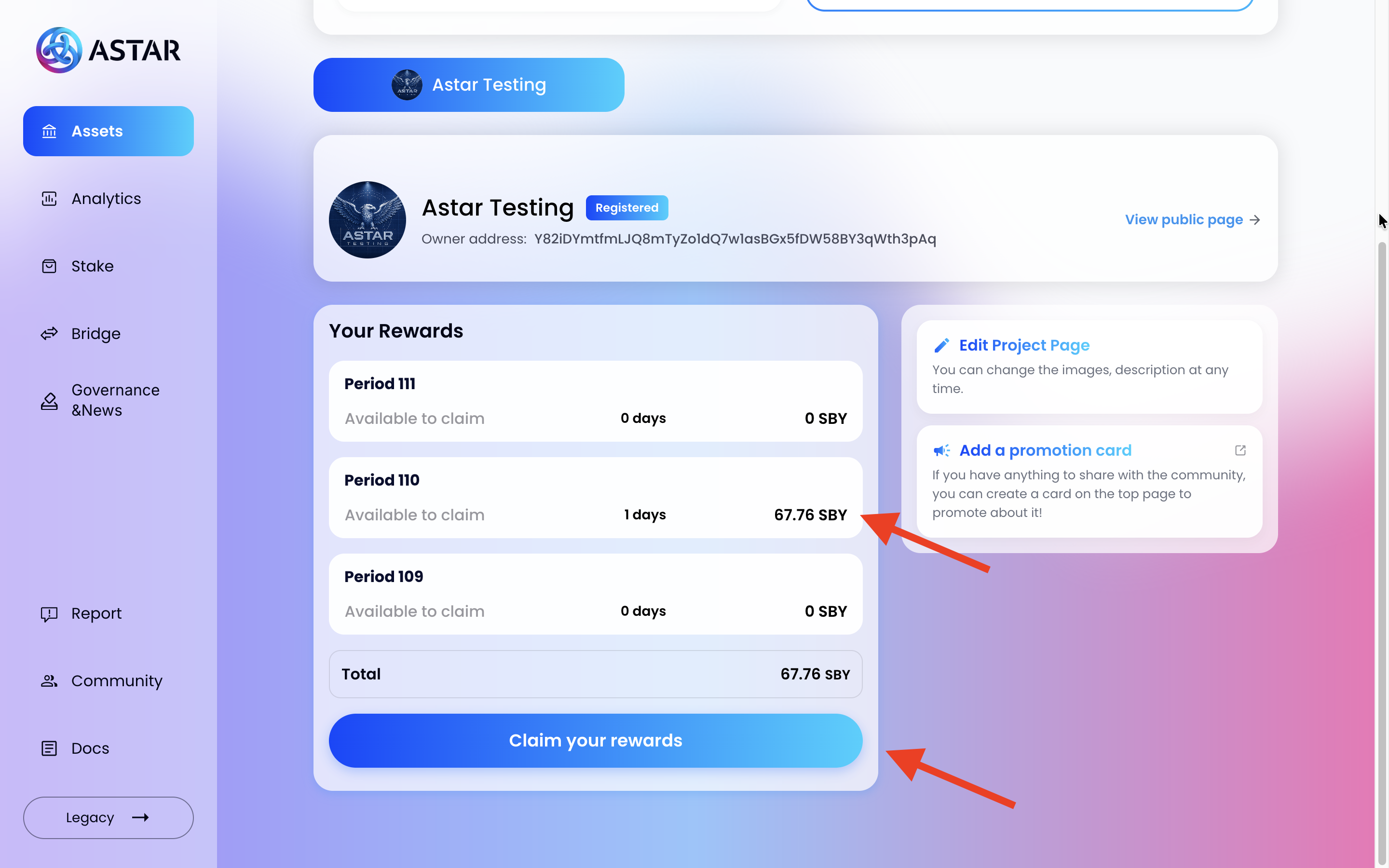
Click Claim your rewards and sign the transaction. All pending rewards across all listed periods are released in a single transaction.
dApp rewards are only earned while your project is in an active tier. A project must hold the required staking threshold (0.93% of total issuance for Tier 2, 0.35% for Tier 3) during the Build&Earn period to generate claimable dApp rewards.
III. Manage Your Project Page
Two management options are available from the My Project panel on the right side of the dashboard.
3.1. Edit project page
Click Edit Project Page to update your project's name, description, logo, images, category, builders, or community links at any time. Changes take effect on the public page as soon as they are saved.
3.2. Add a promotion card
Click Add a promotion card to create a featured card that appears in the dApp Staking section of the Portal. Use this when running a campaign, launch event, or staking incentive that you want to highlight to the community.
Have questions? Join the official Astar Discord.